
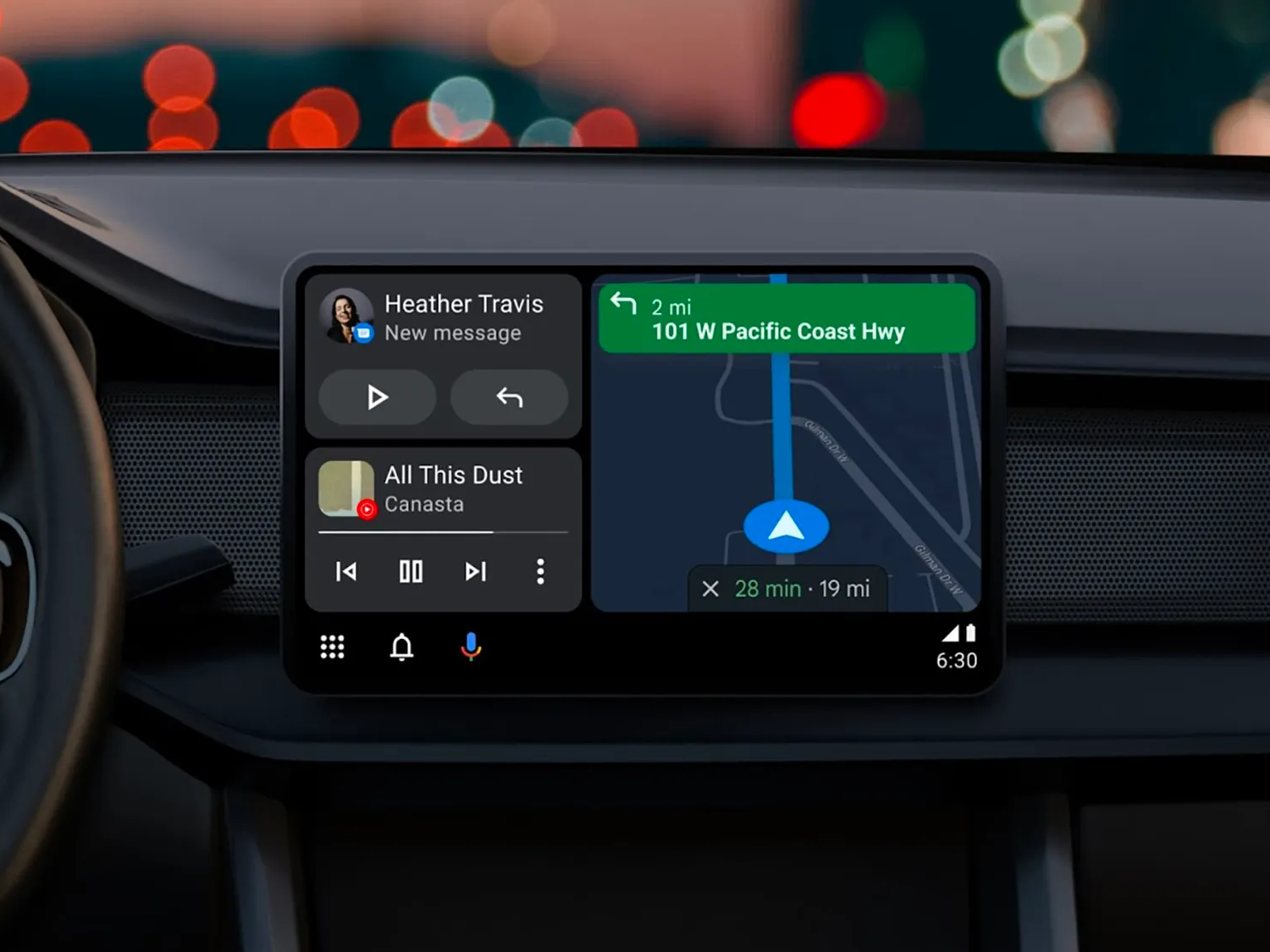
Android Auto is a smart driving companion that integrates your Android phone with your car’s infotainment system. It allows you to access your phone’s apps, music, and messaging while keeping your eyes on the road and hands on the wheel. However, like any software, Android Auto can sometimes experience performance issues that can affect your driving experience.
If you’re wondering how you can improve your Android Auto performance, there are several things you can do. First, make sure that you have the latest version of the Android Auto app installed on your phone. You can check for updates in the Google Play Store. Updating to the latest version can fix bugs and improve performance.
Another way to improve Android Auto performance is to optimize your phone’s settings. For example, you can disable battery optimization for the Android Auto app, which can prevent it from being killed in the background and improve its responsiveness. You can also clear the cache and data for the Android Auto app, which can free up space and improve its performance.
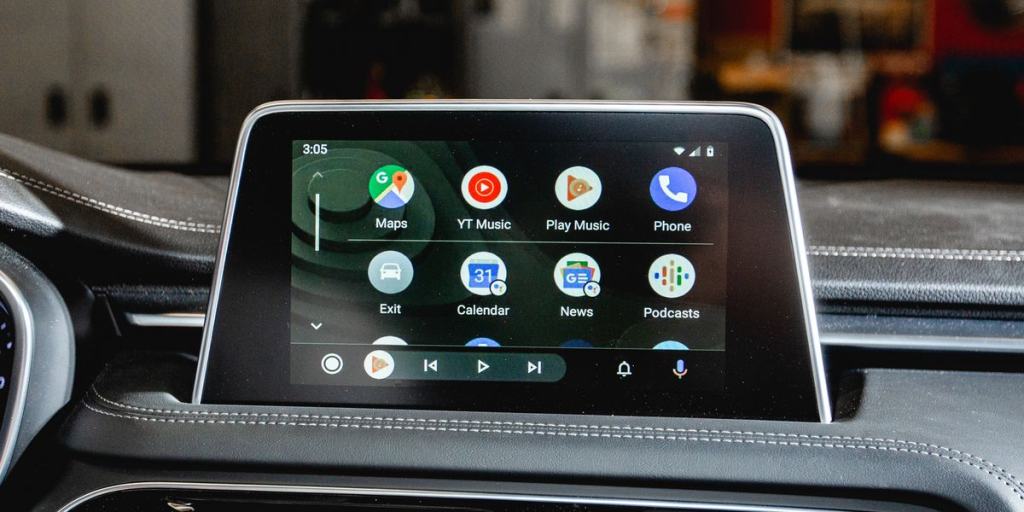
Update Software and Applications
Android Auto is a powerful tool that can make driving safer and more enjoyable. However, to get the most out of it, it is essential to keep both the Android Auto app and the smartphone’s operating system up to date. This section will explain the importance of updating Android Auto and compatible apps, the steps to check for updates, and the benefits of using the latest features and security enhancements.
Importance of Keeping Android Auto and Smartphone Software Up to Date
Keeping Android Auto and smartphone software up to date is crucial for several reasons. First, updates often include bug fixes that can improve performance and stability. Furthermore, updates may also include new features that can enhance the user experience.
Second, updates often include security enhancements that can protect the user’s personal information and device from potential threats. As cybercriminals continue to develop new ways to exploit vulnerabilities, it is essential to stay up to date with the latest security patches.
Steps to Check for Updates on Android Auto and Compatible Apps
Checking for updates on Android Auto and compatible apps is a straightforward process. To check for updates on Android Auto, follow these steps:
- Open the Google Play Store app on your smartphone.
- Tap on the three horizontal lines in the top-left corner.
- Tap on “My apps & games.”
- Find the Android Auto app and tap “Update” if an update is available.
To check for updates on compatible apps, follow these steps:
- Open the Google Play Store app on your smartphone.
- Tap on the three horizontal lines in the top-left corner.
- Tap on “My apps & games.”
- Find the app you want to update and tap “Update” if an update is available.
Benefits of Using the Latest Features and Security Enhancements
Using the latest features and security enhancements can provide several benefits. First, new features can enhance the user experience by adding new functionality and improving existing features. For example, a new feature may allow the user to control their music playback more easily or provide more detailed navigation instructions.
Second, security enhancements can protect the user’s personal information and device from potential threats. As cybercriminals continue to develop new ways to exploit vulnerabilities, it is essential to stay up to date with the latest security patches.
In conclusion, keeping Android Auto and compatible apps up to date is essential for optimal performance, stability, and security. Users should regularly check for updates and install them promptly to take advantage of the latest features and security enhancements.
Optimize Smartphone Settings
Android Auto is an innovative technology that allows users to access their phone’s features while driving. However, to ensure a smooth and seamless experience, it is essential to optimize smartphone settings. Below are some tips to help users optimize their smartphone settings for better Android Auto performance.
Managing Background Applications to Free Up Resources
Background applications can consume a significant amount of system resources, leading to slower performance. Users can manage background applications by accessing the “Developer Options” menu on their Android device. From there, they can limit the number of background processes and adjust the duration of background activities.
Adjusting Battery Optimization Settings for Better Performance
Battery optimization is a critical factor in Android Auto performance. Users can adjust battery optimization settings by accessing the “Battery” menu on their Android device. From there, they can disable battery optimization for Android Auto and other essential applications. This will ensure that these applications receive enough power to function optimally.
Ensuring a Stable Internet Connection for Seamless Functionality
A stable internet connection is crucial for Android Auto to function correctly. Users can ensure a stable internet connection by connecting their device to a Wi-Fi network or using a mobile hotspot. Additionally, users can disable automatic Wi-Fi connectivity and set a static IP address to avoid connection issues.
By optimizing smartphone settings, users can ensure that Android Auto functions optimally. These tips can help users improve performance, speed, and stability, ensuring a seamless driving experience.
Improve Vehicle Compatibility
Android Auto is designed to work with a wide range of vehicles, but not all cars are compatible with the system. If you’re experiencing issues with Android Auto, it’s important to make sure that your vehicle is compatible with the system. Here are some steps you can take to improve the compatibility of your vehicle with Android Auto.
Checking Vehicle Compatibility with Android Auto
The first step in improving your vehicle’s compatibility with Android Auto is to check if your car is compatible with the system. You can do this by visiting the Android Auto website and checking the list of compatible vehicles. If your car is not on the list, it may not be compatible with Android Auto.
Updating the Vehicle’s Infotainment System Firmware
If your vehicle is compatible with Android Auto, but you’re still experiencing issues with the system, you may need to update your car’s infotainment system firmware. This can be done by visiting your car manufacturer’s website and downloading the latest firmware update for your vehicle. Make sure to follow the instructions carefully when updating the firmware.
Utilizing High-Quality USB Cables for Better Connectivity
Another way to improve the compatibility of your vehicle with Android Auto is to use high-quality USB cables for better connectivity. Cheap or low-quality cables can cause connectivity issues with Android Auto. It’s recommended to use cables that are at least 3 feet long and have a high-quality connector. Avoid using third-party cables that are not certified by your car manufacturer.
By following these steps, you can improve the compatibility of your vehicle with Android Auto and enjoy a smoother and more reliable experience with the system.
Conclusion
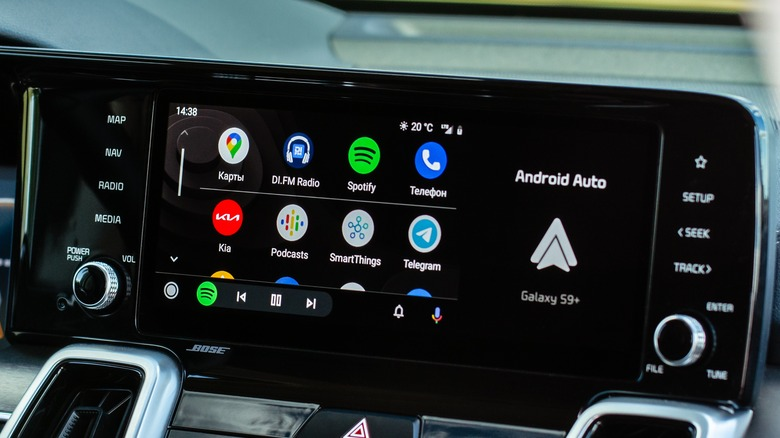
Recap of the Key Strategies to Enhance Android Auto Performance
To enhance the performance of Android Auto, users should consider implementing the following strategies:
- Keep the Android Auto app updated to the latest version to ensure that all bugs and issues are addressed.
- Regularly clear the cache and data of the Android Auto app to free up space and improve the app’s performance.
- Disable unnecessary apps and features that are not being used while driving to reduce the load on the phone’s resources.
- Optimize the phone’s settings for better performance, such as disabling animations and reducing the screen brightness.
Encouragement to Regularly Assess and Implement These Improvements
By regularly assessing and implementing these improvements, users can ensure that they have a smooth and seamless experience while using Android Auto. It is important to note that the performance of Android Auto can be affected by various factors, such as the phone’s hardware and software configurations, as well as the quality of the USB cable used to connect the phone to the car’s infotainment system.
Final Thoughts on the Benefits of a Well-Optimized Android Auto Experience
A well-optimized Android Auto experience can provide users with a safer and more convenient way to access their phone’s features while driving. By following the key strategies outlined in this article, users can ensure that they have a smooth and seamless experience while using Android Auto. It is important to regularly assess and implement these improvements to ensure that the performance of Android Auto remains optimal.
Frequently Asked Questions
What are the best settings to enhance Android Auto performance on a Samsung device?
Samsung device users can enhance their Android Auto performance by adjusting the app’s settings. One recommended setting is to enable the “Force 4x MSAA” option in the Android Developer settings. This will improve the graphics performance of Android Auto. Additionally, users can disable battery optimization for the Android Auto app to prevent it from being killed in the background.
How can I access and adjust Android Auto developer settings for better functionality?
To access the Android Auto developer settings, users must first enable the “Developer options” on their Android device. Once enabled, users can find the Android Auto developer settings by opening the Android Auto app, tapping on the “About” section, and then tapping the “About Android Auto” header five times. From there, users can access and adjust various settings to improve the functionality of Android Auto.
What steps can I take to resolve lag issues with Android Auto?
Lag issues with Android Auto can be resolved by ensuring that the app is up to date, clearing the app’s cache and data, and disabling any unnecessary apps running in the background. Additionally, users can try resetting their Android Auto head unit or restarting their phone to resolve any performance issues.
How can I optimize the sound settings in Android Auto for clearer audio quality?
Users can optimize the sound settings in Android Auto by adjusting the equalizer settings. By adjusting the bass, treble, and other sound settings, users can achieve clearer audio quality. Additionally, users can ensure that their phone’s volume is turned up and that their car’s audio system is set to the correct input.
Why is Google Maps running slow on my Android head unit and how can I fix it?
Google Maps may run slow on an Android head unit due to various factors such as poor network connectivity, outdated software, or insufficient hardware resources. Users can try clearing the app’s cache and data, updating their Android Auto app and Google Maps app, and ensuring that their Android head unit has sufficient storage space. Additionally, users can try using a different navigation app to see if the issue persists.
Are there any updates or upgrades available to improve the performance of Android Auto?
Android Auto is regularly updated to improve its performance and functionality. Users can check for updates by opening the Google Play Store app and searching for “Android Auto”. If an update is available, users can download and install it to improve the performance of Android Auto. Additionally, users can check for firmware updates for their car’s head unit to ensure that it is up to date.